 Steff
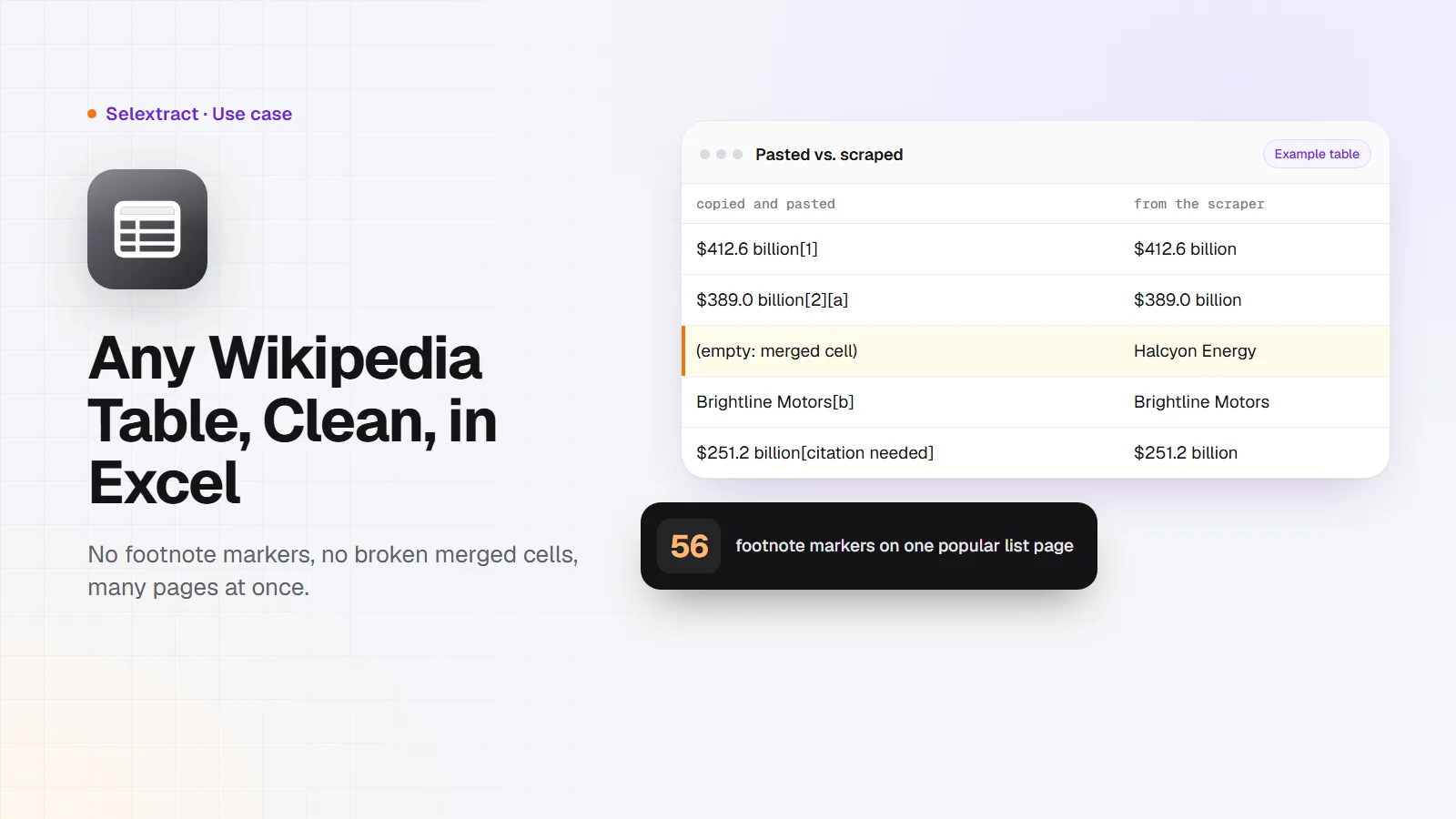
You can get a Wikipedia table into Excel or Google Sheets in three ways: copy and paste it, use the IMPORTHTML formula in Google Sheets, or use a scraper that cleans the table for you. For one small table, copy and paste is fine. For anything bigger, the footnote markers, merged cells and hidden sort values make a mess, and that's where the other two help. This post compares all three and shows when each one is the right choice.

Option 1: Copy and paste
Select the table on the page, copy it and paste it into your spreadsheet. It works, with three problems:
- Footnote markers come along.
$611.3 billion[1]is text, not a number, until you clean it. - Merged cells break rows. When one cell spans three rows on Wikipedia, only the first row gets the value after pasting.
- Hidden values appear. Some sortable tables carry hidden sort keys that show up in your cells.
To give you an idea: the "List of largest companies by revenue" page has two data tables, with 56 footnote markers and 28 merged cells between them.
Option 2: IMPORTHTML in Google Sheets
Google Sheets can import a table directly:
=IMPORTHTML("https://en.wikipedia.org/wiki/List_of_largest_companies_by_revenue", "table", 1)
The last number is the table's position on the page. It's quick and it refreshes itself, but:
- The position counts every table, including infoboxes and navigation boxes, so finding the right number takes trial and error.
- Footnote markers stay in the cells.
- It's one table per formula, and it only works in Google Sheets.
For a single table you'll keep in Sheets, it's a good choice.
Option 3: The Wikipedia Table Scraper
The scraper reads the page and gives you every data table as clean rows:
- Only data tables: infoboxes and navigation boxes are skipped, so table 1 is the first real table.
- Footnote markers removed:
[1],[a]and[citation needed]are gone. - Merged cells filled in: a value that spans three rows appears in all three.
- Stacked headings combined: a column under "Revenue" and "USD millions" becomes
Revenue / USD millions. - Many pages at once: up to 10 pages per run, in any language.
Open the scraper and fill in:
- Wikipedia pages: up to 10 links, like
https://en.wikipedia.org/wiki/List_of_largest_companies_by_revenue - Table number (optional):
0for every table, or the number of the one you want - Maximum rows:
1000
Each row has the page, the table's number and caption, the row number, and one column per heading in the table. Download it as CSV or Excel, or export it to Google Sheets.
Here's what a few rows look like. The page and companies are made up; the columns and formats are the real ones:
page |
table_number |
row_number |
Rank |
Name |
Revenue / USD millions |
|---|---|---|---|---|---|
| Example list page | 1 | 1 | 1 | Northwind Group | 412,600 |
| Example list page | 1 | 2 | 2 | Halcyon Energy | 389,000 |
| Example list page | 1 | 3 | 3 | Brightline Motors | 274,900 |
Which one should you use?
| You want to | Use |
|---|---|
| Copy one small table, once | Copy and paste |
| Keep one table in Google Sheets, updated | IMPORTHTML |
| Clean data from big tables, many tables or many pages | The scraper |
| Refresh tables on a schedule or feed them to your own code | The scraper, through the API |
Ideas that work well
- Market lists: the largest companies in an industry, with revenue, employees and headquarters, as a starting list for research or sales.
- Country data: GDP, population or any statistic Wikipedia keeps in a table, ready for a chart.
- Sports and elections: results tables for analysis or a dashboard.
- The same table in several languages: each language's Wikipedia keeps its own tables, often with local detail the English page lacks.
Keep it current
Wikipedia tables change as editors update them. Your run is saved as a task in your account, so give it a weekly or monthly schedule and you always have the latest version, without redoing the cleanup.
FAQ
How do I convert a Wikipedia table to Excel?
Copy and paste it for a quick one-off. For a clean version without footnote markers and broken merged cells, run the Wikipedia Table Scraper and download the result as an Excel file.
Can I get every table on a page?
Yes. Set Table number (optional) to 0, and each row tells you which table it came from.
Does it convert values to numbers?
No. Values stay as Wikipedia shows them, like $611.3 billion, so nothing is lost. Spreadsheet formulas like VALUE and SUBSTITUTE turn them into numbers once the footnote markers are gone.
Can I use the data in my own work?
Wikipedia's text is available under the CC BY-SA license. You can reuse it, including commercially, as long as you credit Wikipedia and share your changes under the same license.
Good to know
- Each run takes up to 10 pages and returns up to 5,000 rows.
- Runs use your own Selextract credit.